Introduction
NMEA PC Time Sync VK4AMG 2020 is a Windows application developed in Visual Basic 6V0. The application reads serial NMEA sentences from a GPS receiver and applies a time sync correction to the PC every thirty seconds at 29sec and 59secs past the minute. Serial connection may be by USB or by RS-232 port.
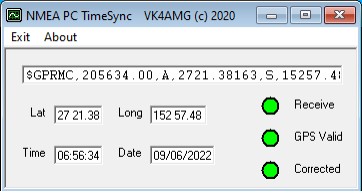
A GPS receiver may provide many common messages (refer NMEA-0183 messages: Overview
(trimble.com)) The NMEA RMC sentence (refer NMEA-0183 message: RMC (trimble.com)) is a NMEA-0183 message providing Position, velocity, and time.
NMEA RMC (e.g. $GPRMC,123519,A,4807.038,N,01131.000,E,022.4,084.4,230394,003.1,W*6A).
In order to simplify parsing of the time from the NMEA messages and to improve the accuracy of time synchronization, configuring the GPS receiver for only the NMEA RMC is recommended. The low cost readily available ublox Neo 6 may be configured with the (u-center | u-blox) evaluation software. GPSD GPS Disciplined 10MHz Frequency Reference by VK4AMG is supplied configured for NMEA RMC message only at 9600 baud from the USB serial port.

Installation
For Windows 7 and later, the application is provided without an installer. A Zip file contains
the executable and two realtime extension files (.dll) required for the application access serial communications under Windows.

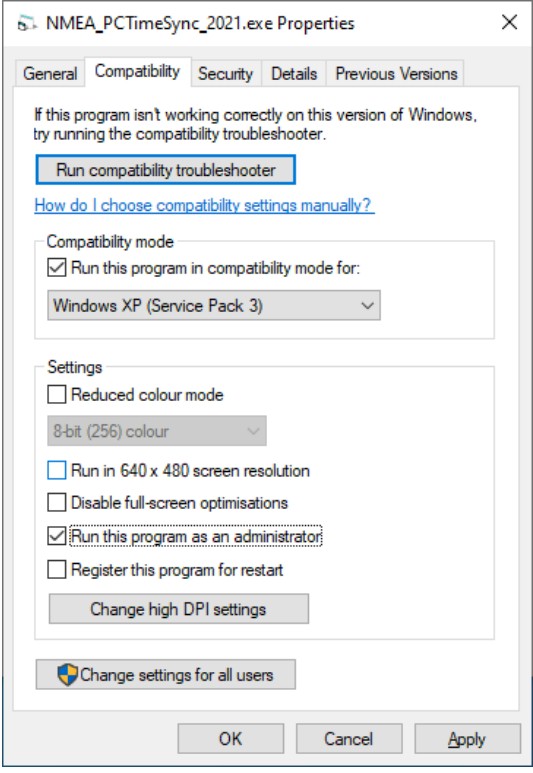
To install the application, the Zip file should be extracted to a new folder in drive C:, e.g. Programs. The compatibility properties are then set by right clicking on the .exe file and selecting Properties from the pull-down list and selectin the Compatibility tab. The program is to be set for ‘Run this program in compatibility mode for Windows XP SP3’ and ‘Run this program as administrator’.
Running Program
Connect the PC to the GPS receiver. Open Control Panel and select ‘Device Manager’. Expand Ports (COM & LPT) to confirm the GPS serial port is connected. Double click on the Communications Port. Select the ‘Port Settings’ tab. Click ‘Advanced’ button. From the Pull-down List ‘COM Port Number’ select ‘COM2’.

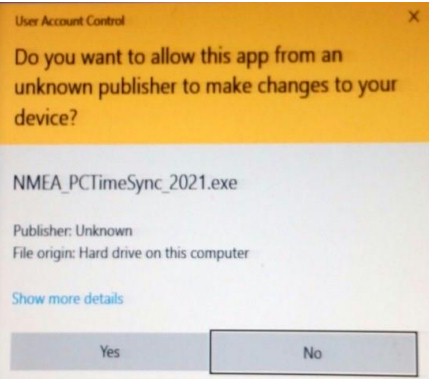
Run ‘NMEA_PCTimeSync_2020’ by double clicking the application. In the ‘User Account Control’ Popup dialog, click ‘yes’.
The Time Sync application GUI will be displayed together with a ‘Select Comm Port’ dialog. The default comm port ‘Com2’ and the default baud rate ‘9600’ will be displayed.
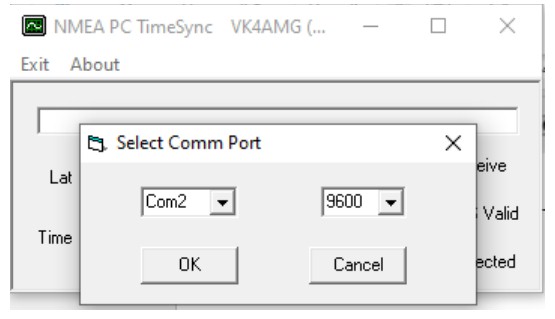
If an alternative comm port and / or baud rate is required, select them from the Pull-down lists. Click ‘OK’. If no action is taken the ‘Select Comm Port’ dialog will close after a short delay and the application will run. Com1 through Com9 only are supported. If the comm port does not exist or is in use, an error ‘Com? in use’ will display. When ‘OK’ is clicked the application will close.
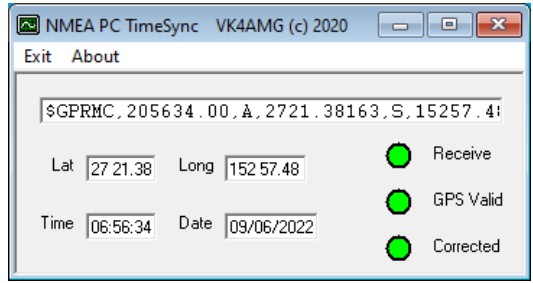
If the GPS receiver is sending NMEA RMC messages the ‘Receive’ LED will flash Red every second. When the GPS receiver reports the GPS is receiving valid position and time fix, the ‘GPS Valid’ LED will light green. The GPS NMEA RMC message will be displayed together with the date and time and the latitude and longitude. At the 25th and 55th GPS second, a correction will be applied to synchronize the PC time.
NOTE: if the application is not run as administrator, windows will throw an exception when the application attempts to correct the PC clock. The application will terminate.
Diagnostics and Fault Finding
‘Com2 in Use’ Check comm port setting in Windows. Check USB serial cable connected to PC.
No ‘Receive’ LED activity. Check GPS is powered. Use a serial terminal program, such as RealTerm, to check serial messages are being sent by GPS receiver.
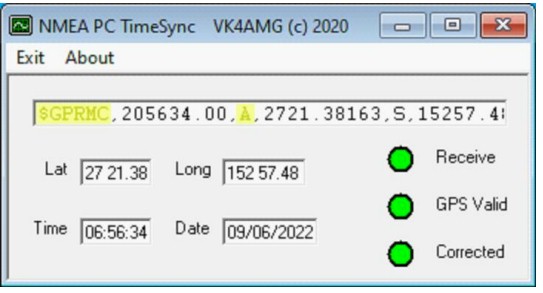
$GPRMC message is not displayed in text box. Check GPS receiver baud rate is correctly configured / selected in the application. 4800 baud is default NMEA but 9600 is becoming more common. The GPSD by VK4AMG is configured for 9600 baud.
GPS Valid is not lit. Check the message type displayed is headed ‘$GPRMC,’. Additional messages may be tolerated but RMC sentences only is recommended. Prefix other than $GP may be configured on some GPS receivers. If an error is identified, reconfigure GPS Receiver. Correct operation of the GPS receiver antenna OK, satellites, GPS lock) is indicated by a ‘A’ in the message, else a ‘V’ will be sent. Check antenna, cable, and location providing clear view of satellites. If the GPS receiver has not been used for some time or its backup battery is not fitted or flat, the receiver will be performing a cold start. Several minutes to half an hour may be required to acquire valid GPS lock. Check operation of GPS receiver with an application such as Visual GPS View VisualGPS, LLC or u-center | u-blox.
Corrections. When GPS Valid is lit, the application will correct the PC time at 25 and 55 seconds past the minute. Correction is indicated by a red flash on the ‘Corrected’ LED. Application cannot set the PC time if not run as administrator. Check the application compatibility setting.
A copy of the application and its supporting Windows realtime extensions are available at GPS_TimeSync_App.
Any feedback on the application please email me at VK4AMG at WIA.org.au.
 VK4AMG